
Comprehensive OpenSSH Tutorial: Master Secure Shell Connections
By Andrew Thornton
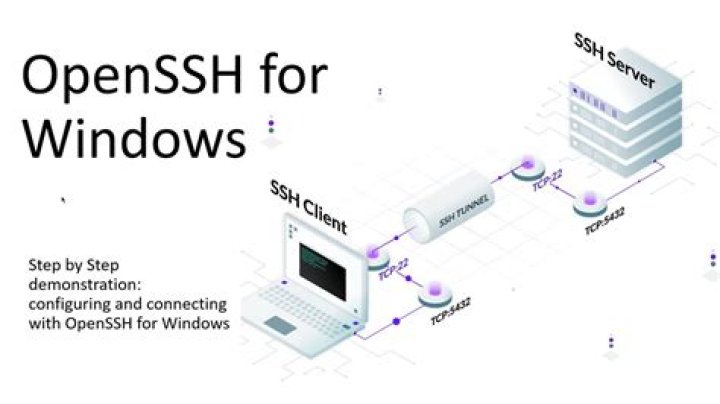
OpenSSH tutorial is a valuable resource for anyone looking to secure their network communications. OpenSSH, or Open Secure Shell, is an open-source suite of connectivity tools that employ the SSH protocol to provide secure access to remote computers. Whether you're a developer, system administrator, or cybersecurity enthusiast, understanding OpenSSH is crucial for safeguarding your data and ensuring efficient remote management.
OpenSSH has become the de facto standard for secure communication over untrusted networks. It replaces older, less secure protocols like Telnet and rlogin by encrypting all traffic, including passwords, to protect sensitive information from eavesdropping. With the increasing importance of cybersecurity, learning how to use OpenSSH effectively is more important than ever.
In this tutorial, we will cover everything you need to know about OpenSSH, from basic concepts to advanced configurations. By the end of this guide, you will have the knowledge and skills to set up and manage secure connections using OpenSSH. Let's dive in!
Introduction to OpenSSH
OpenSSH, short for Open Secure Shell, is a set of tools and utilities that allow users to securely access and manage remote systems over untrusted networks. Developed as an open-source project, OpenSSH implements the SSH protocol, which provides strong encryption, integrity, and authentication mechanisms.
One of the primary advantages of OpenSSH is its ability to replace outdated and insecure protocols such as Telnet and FTP. By encrypting all data transmitted between systems, OpenSSH ensures that sensitive information, including passwords and files, remains confidential and protected from unauthorized access.
Why Use OpenSSH?
OpenSSH offers several benefits over traditional network protocols:
- Encryption: All data transmitted through OpenSSH is encrypted, ensuring privacy and security.
- Authentication: OpenSSH supports various authentication methods, including password-based and public-key authentication, making it highly flexible.
- Portability: OpenSSH is available on a wide range of operating systems, including Linux, macOS, and Windows, making it a versatile solution for cross-platform environments.
Installing OpenSSH
Before you can start using OpenSSH, you need to install the necessary software on your system. The installation process varies depending on your operating system.
Installing OpenSSH on Linux
Most Linux distributions come with OpenSSH pre-installed. However, if it's not installed, you can easily add it using your distribution's package manager. For example:
- Ubuntu/Debian: Use the command
sudo apt install openssh-server. - CentOS/RHEL: Use the command
sudo yum install openssh-server.
Installing OpenSSH on Windows
Starting with Windows 10 version 1809, OpenSSH is available as an optional feature. To enable it:
- Open "Settings" and navigate to "Apps" > "Optional features."
- Click "Add a feature" and search for "OpenSSH Server."
- Select it and click "Install."
Basic Usage of OpenSSH
Once OpenSSH is installed, you can start using it to establish secure connections. The most common use case is connecting to a remote server using the ssh command.
Connecting to a Remote Server
To connect to a remote server, open your terminal or command prompt and type:
ssh username@hostname
Replace username with your account name on the remote server and hostname with the server's IP address or domain name. You will be prompted to enter your password if you're using password-based authentication.
Configuring SSH
OpenSSH allows you to customize its behavior through configuration files. The main configuration file for the SSH server is located at /etc/ssh/sshd_config.
Common Configuration Options
- Port: Specifies the port number on which the SSH server listens (default is 22).
- PermitRootLogin: Controls whether the root user can log in directly.
- PubkeyAuthentication: Enables or disables public-key authentication.
After making changes to the configuration file, restart the SSH service for the changes to take effect:
sudo systemctl restart sshd
Using SSH Keys for Authentication
Public-key authentication is a secure and convenient alternative to password-based authentication. It involves generating a pair of cryptographic keys: a private key (kept securely on your local machine) and a public key (uploaded to the remote server).
Generating SSH Keys
To generate a new SSH key pair, use the following command:
ssh-keygen -t rsa -b 4096
This command creates a 4096-bit RSA key pair. You can also choose other algorithms, such as Ed25519, for better performance and security.
Adding the Public Key to the Remote Server
To enable key-based authentication, copy your public key to the remote server:
ssh-copy-id username@hostname
This command appends your public key to the ~/.ssh/authorized_keys file on the remote server.
Advanced Features of OpenSSH
OpenSSH offers several advanced features that enhance its functionality and security:
Tunneling
SSH tunneling allows you to securely forward traffic between systems. This is particularly useful for accessing services behind firewalls or encrypting sensitive data streams.
Port Forwarding
Port forwarding enables you to redirect traffic from one port to another. For example, to forward traffic from local port 8080 to remote port 80:
ssh -L 8080:localhost:80 username@hostname
Security Best Practices
While OpenSSH is inherently secure, following best practices can further enhance its security:
- Disable Password Authentication: Use public-key authentication exclusively to prevent brute-force attacks.
- Change the Default Port: Moving the SSH server to a non-standard port reduces the likelihood of automated attacks.
- Use Firewall Rules: Restrict access to the SSH port to trusted IP addresses using firewall rules.
Troubleshooting OpenSSH
Even with careful configuration, issues can arise when using OpenSSH. Here are some common problems and their solutions:
Connection Refused
If you receive a "Connection refused" error, ensure that:
- The SSH server is running.
- Firewall rules allow traffic on the specified port.
Authentication Failed
If authentication fails, verify that:
- Your username and password are correct.
- Your public key is properly added to the
authorized_keysfile.
Performance Tuning
For high-traffic environments, optimizing OpenSSH performance can improve efficiency and reduce latency:
- Compression: Enable compression to reduce the size of transmitted data.
- Ciphers: Choose efficient ciphers that balance security and performance.
Conclusion
In conclusion, OpenSSH is an indispensable tool for anyone working with remote systems. By mastering its features and following best practices, you can ensure secure and efficient communication over untrusted networks. Remember to regularly update your OpenSSH installation and review your configuration to stay ahead of potential security threats.
We encourage you to share your experiences and tips in the comments below. Additionally, explore other tutorials on our site to deepen your knowledge of cybersecurity and system administration. Together, let's build a safer digital world!


